Choose your image
Open the studio and tap the upload area, or drag a file into it on desktop. You can also start with the example image to learn the controls.
Turn a photo into crisp pixel art in your browser. Follow these steps, then experiment with the controls until the result looks right to you.
Try the image pixelator ↗
A photo in a format your browser can open, such as JPG, PNG or WebP. The tool accepts files up to 20 MB.
The converter processes your source image in your browser. It does not send that image to our server.
A PNG you can save and share. The generated image keeps its original proportions.
Open the studio and tap the upload area, or drag a file into it on desktop. You can also start with the example image to learn the controls.
Move the Pixel size slider. A smaller value keeps more detail; a larger value creates chunkier blocks. Start around the default and adjust by eye.
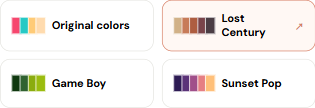
Keep Original colors for a familiar look, try a built-in palette, or import a Lospec palette. Turn on Dithering if flat color areas need a textured transition.
The preview updates as you change settings. On mobile it appears directly below the upload area. When you like the result, press Download PNG.

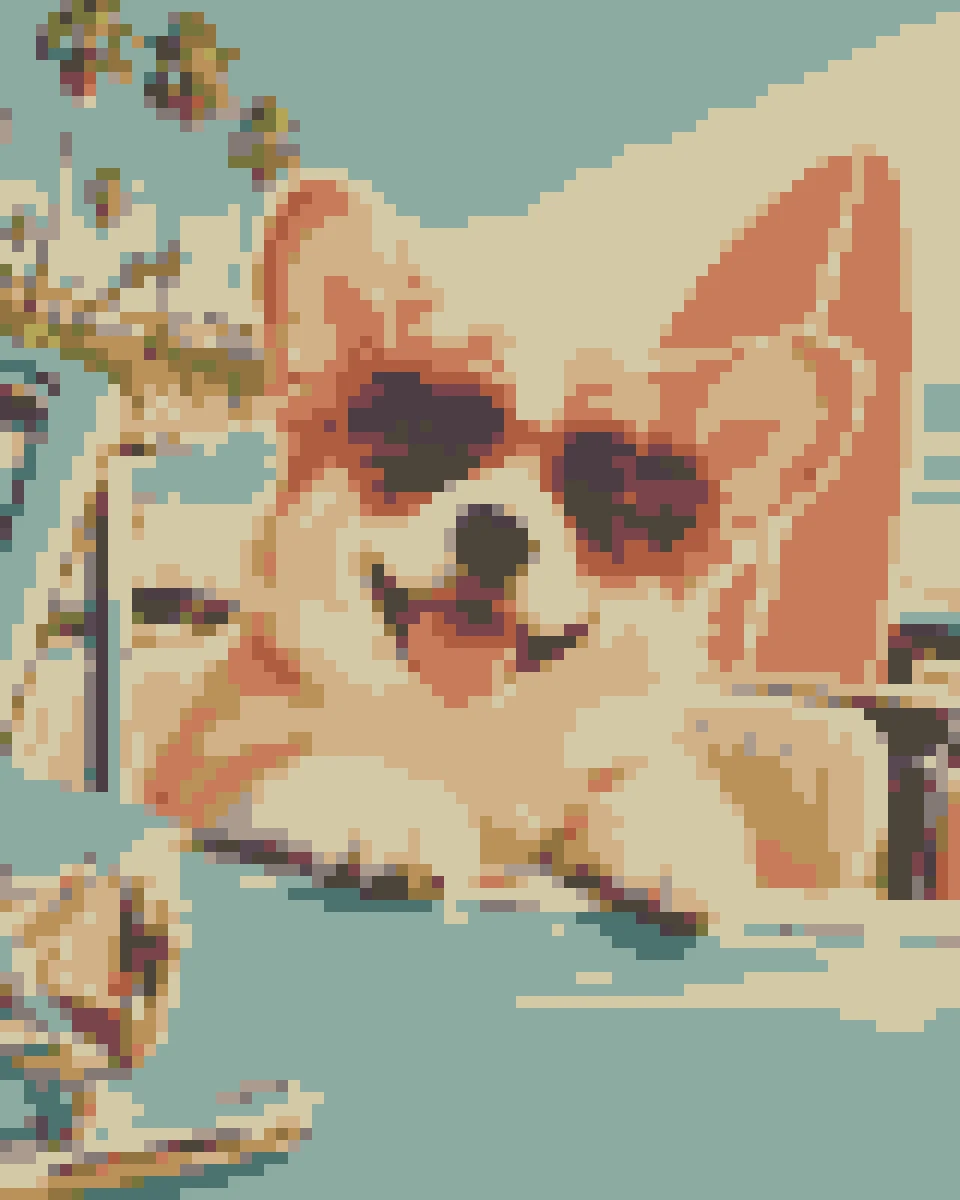
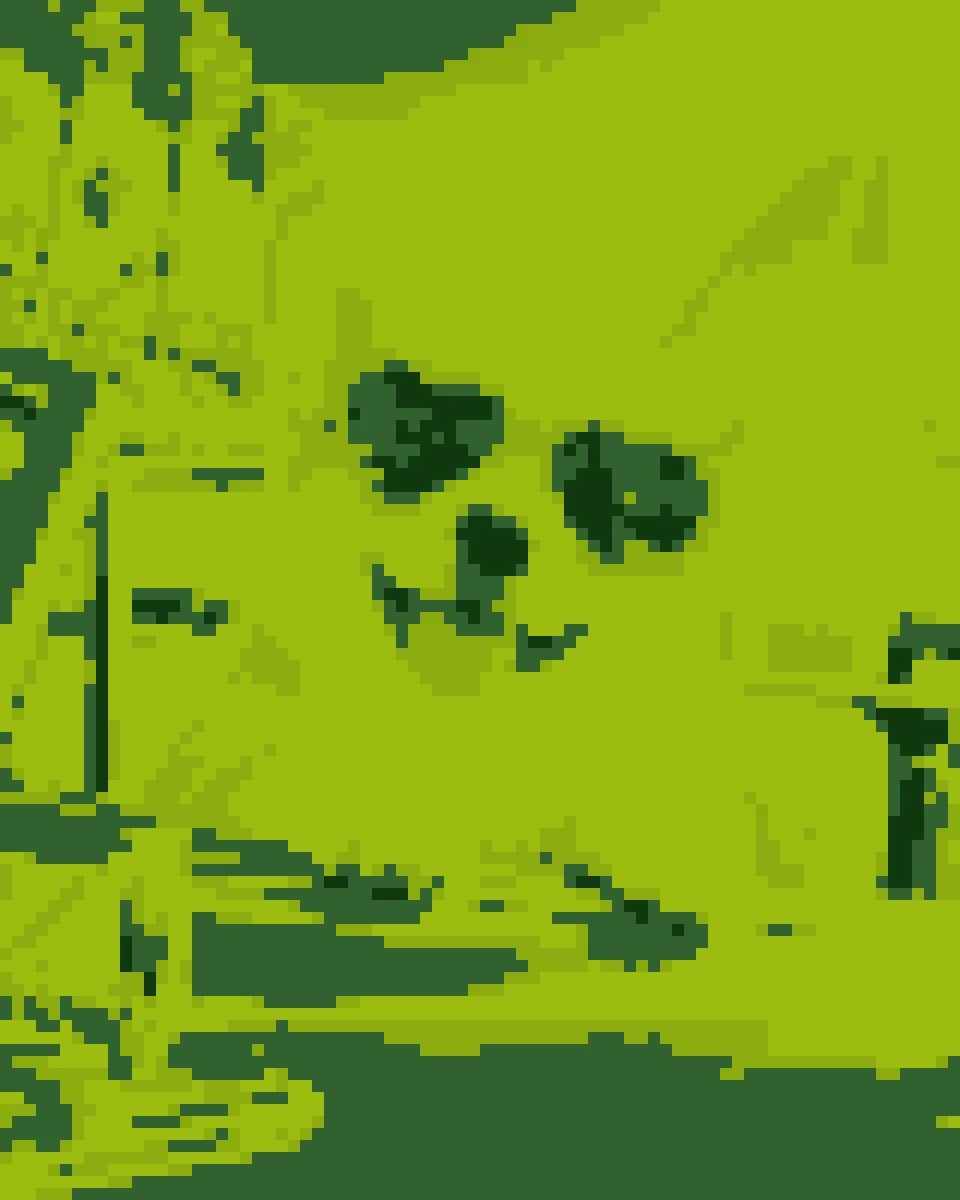
All three results come from the corgi photo above: Original colors uses 16 px blocks; Lost Century and Game Boy use 12 px blocks. Dithering is off.

HEIC and some camera formats depend on browser support. Export the photo as JPG or PNG, keep the file under 20 MB, and select it again.
Check your browser download list or your phone’s Files app. The PNG may not appear in your photo library automatically; open the file and use the system save or share action.
Use the specific palette detail page URL, not the palette list or an image URL. Check your connection. If a palette has been removed or is temporarily unavailable, try a built-in palette.
Want a different mood? Learn how to use Lospec color palettes, or go straight back to the editor.